
Automation
No‑API Reporting: Turning Desktop Accounting Screens into Reliable, Automated Data Feeds
本文以英文撰寫。
Introduction
Many small businesses in British Columbia still run accounting on desktop packages — AccountEdge, QuickBooks Desktop or Sage 50 — which often lack modern cloud APIs. That creates headaches when you need reliable, scheduled reports for cash flow, GST/PST returns or payroll summaries. This article explains practical ways to extract consistent, accurate reports from desktop accounting software, how to automate exports, and the trade-offs between manual, middleware and automation approaches. You’ll learn step-by-step methods that work for Windows and Mac environments, tips for cleaning and reconciling data, and realistic cost and security considerations in Canadian dollars (CAD). By the end you’ll have a clear plan to get the reports you need with minimal disruption.
Understand your export options
Begin by mapping what each package can already do. Most desktop packages provide built-in report export to CSV, Excel or PDF. Beyond that, there are three practical families of solutions:
- Native exports — use the program’s Report > Export feature. Low cost and straightforward but often manual and inconsistent.
- Drivers and connectors — ODBC/QODBC or third-party drivers that let reporting tools, Excel or BI tools read the accounting data directly. More reliable and suitable for scheduled extracts.
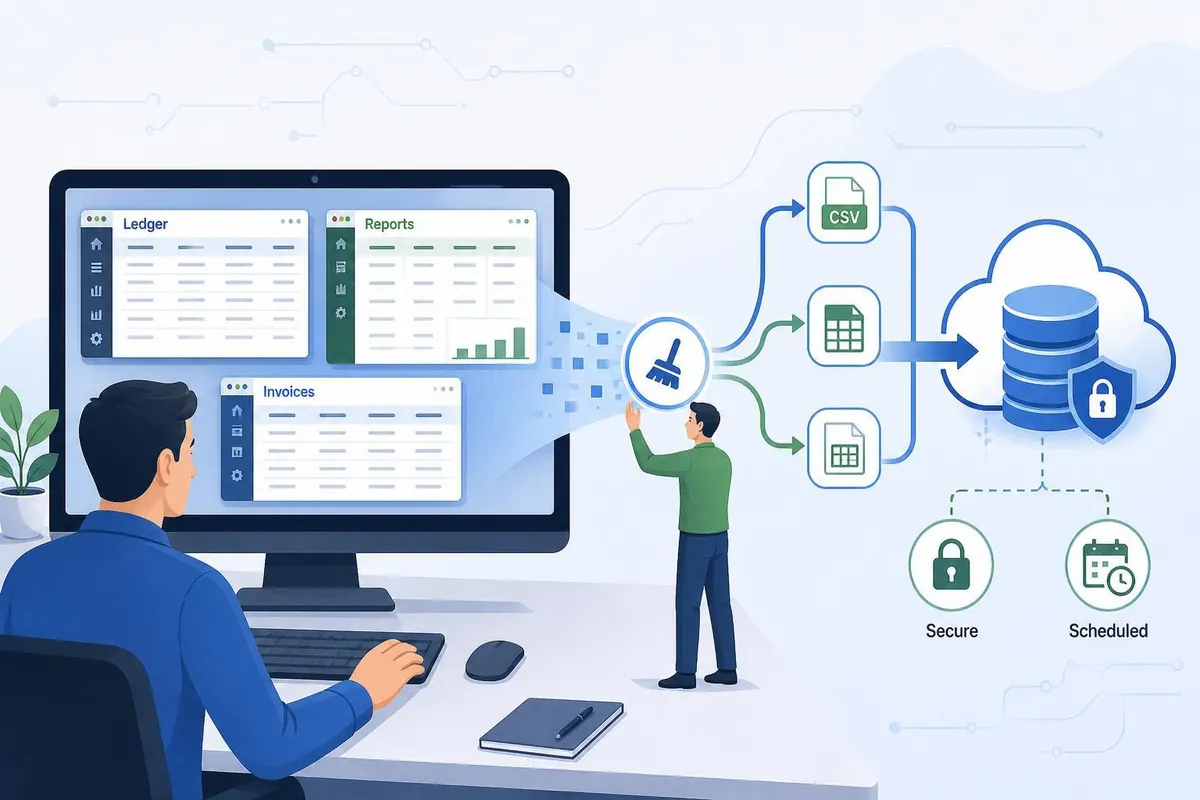
- Automation/RPA and middleware — use scripts, Robotic Process Automation (RPA) or third-party ETL services to automate screen export, transform files and push to a cloud destination.
For QuickBooks Desktop, look for built-in Excel/CSV export and the QB ODBC connectors. For Sage 50, check the ODBC module and the Export function on each report. AccountEdge commonly supports CSV exports and sometimes AppleScript on Macs for automation. Document what formats are available and the exact report templates you need before building anything.
Build a repeatable extraction and automation process
Once you know available formats, create a repeatable pipeline. Follow these steps:
- Define required reports and cadence — list each report (profit and loss, aged receivables, payroll summary), frequency and recipients. Example: monthly P&L on the 3rd, weekly cash position every Monday.
- Standardize report templates — set date ranges, accounting periods and column layouts so exported files are consistent. Save templates inside the accounting software when possible.
- Choose automation method — select native scheduler (if available), a connector/ODBC driver, or RPA. For single-user shops, scheduled exports plus a small script to move files may be enough. For multi-user or frequent extracts, use ODBC or RPA.
- Automate file movement and storage — use simple PowerShell/Batch scripts (Windows) or Automator/AppleScript (Mac) to move exported files to a secure network folder or cloud storage (OneDrive/SharePoint). Use Windows Task Scheduler or cron to schedule scripts.
- Transform and load — use Excel Power Query, Python scripts or an ETL tool to tidy data, map account codes and produce final reports or dashboard loads.
Practical tip: if you install an ODBC driver, test extracts first in Excel using Microsoft Query or Power Query to confirm column names and datatypes. If you use RPA, build error handling that logs failures and sends an email alert to the bookkeeper.
Clean, reconcile and secure your exported data
Exporting is only useful when the data is accurate and protected. Implement these routines:
- Automated validation — include checks that totals match the source (for example, compare exported ending balance to the account balance). Flag mismatches automatically.
- Reconciliation steps — schedule monthly reconciliations (bank, GST/PST, payroll). Keep a changelog noting who ran reports and any manual adjustments.
- Data retention and backups — store exports in a secure folder with versioning. Keep at least 7 years of tax-related reports according to CRA best practices for GST/HST records.
- Security and access control — restrict who can run exports in the desktop software, encrypt exported files if they contain payroll or personal information, and use MFA on the storage account. For cloud transfer, prefer SFTP or a secure API integration rather than email attachments.
Example validation checklist:
| Check | Why it matters | Action if mismatch |
|---|---|---|
| Trial balance totals | Ensures export completeness | Re-run export; check filters and date ranges |
| Bank balance | Confirms reconciliation baseline | Run bank reconciliation and note adjustments |
| PST/GST summary | Tax reporting accuracy | Review taxable sales and exemptions |
Choose long-term strategy and estimate costs
Decide whether to keep desktop software and streamline extracts or to migrate to a cloud accounting system. Here are typical options with approximate costs in CAD:
| Approach | Pros | Cons | Estimated cost (CAD) |
|---|---|---|---|
| Manual exports + scripts | Low initial cost, quick to implement | Requires human oversight, fragile | $0–$500 one-time for script development |
| ODBC/driver connector + scheduled ETL | Reliable, supports BI tools | License and setup effort | $300–$1,500 per year for drivers; $500–$2,000 setup |
| RPA or middleware | Automates non-API apps, handles complex workflows | Ongoing subscription and maintenance | $20–$200/month plus $500–$2,000 setup |
| Migrate to cloud accounting | Modern API access, less local maintenance | Migration cost and change management | $500–$5,000 migration; $20–$100/month subscription |
If your reports are critical for cash flow or lending discussions, consider hiring a local BC bookkeeper or consultant. Typical consulting rates in British Columbia range from about $75–$200 per hour depending on expertise. Budget for an initial discovery and setup phase of 4–20 hours depending on complexity.
Conclusion
Getting reliable reports from desktop accounting packages that have no API is entirely achievable with a mix of careful planning, the right tools and sound validation. Start by documenting the exact reports and formats you need, then choose a method that fits your frequency and budget — from simple scheduled CSV exports to ODBC connectors or RPA for full automation. Implement validation checks, secure your exported files and keep a clear reconciliation process to avoid surprises for GST/PST or payroll filings. For many BC small businesses a hybrid approach (driver for core extracts plus lightweight automation for distribution) gives the best balance of cost and reliability. If automation is beyond your comfort level, budget for local professional help; the up-front cost (often a few hundred to a few thousand CAD) is commonly recouped by the time saved and improved reporting accuracy.